

Windows Desktop PC: FAQs & Getting Started
Getting Started With Your Renewed Desktop PC
This guide will help you get set up, connect your devices, and troubleshoot common issues.
Click to Enlarge
Click to Enlarge
Click to Enlarge
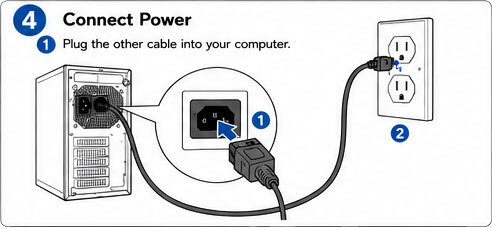
Click to Enlarge
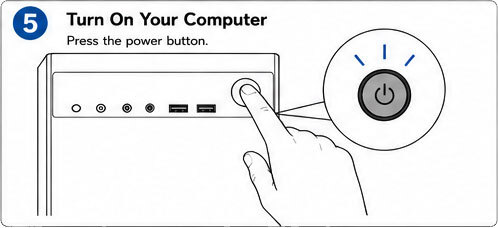
Click to Enlarge
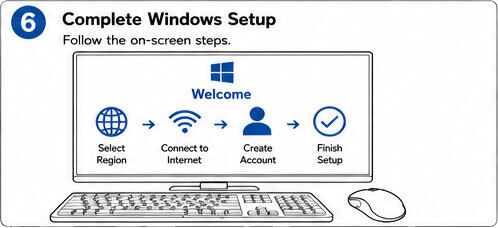
Click to Enlarge
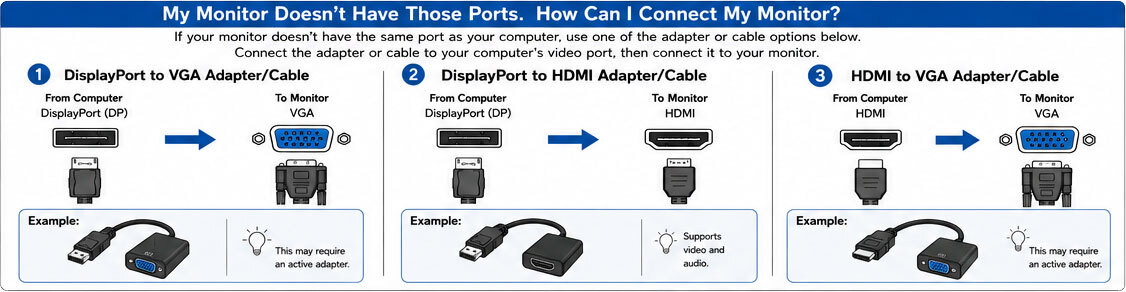
Click to Enlarge
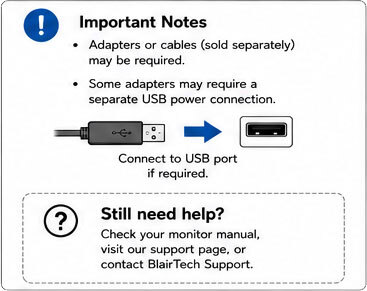
Click to Enlarge
Setting up Windows
Follow Windows Setup. Windows will guide you through:
- Choosing region
- Connecting to Wi-Fi
- Signing in or creating a Microsoft account
Setup may take a little time: Your PC may run Windows updates during setup, which can take a while depending on your internet speed. The screen may restart or pause — this is completely normal.
TIP: If you do not remember your Microsoft account password during setup, you can reset it using another device such as a smartphone, tablet, or another computer.
YOU’RE DONE! Your computer is ready to use.
Frequently Asked Questions & Troubleshooting
Browse common questions by category for helpful setup tips, step-by-step guidance, answers to common questions about software, hardware, updates and more.
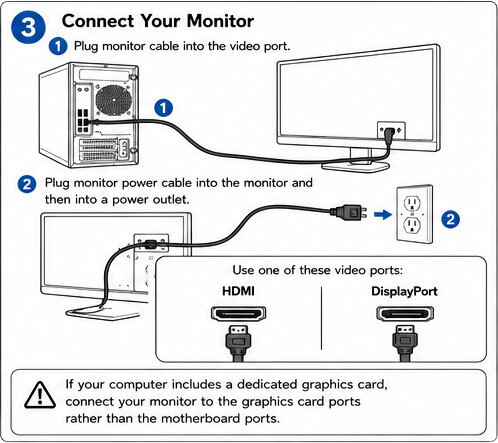
- Make sure Monitor & Mini PC are ON
- Check Video Cable connection
- Verify correct monitor input
Check all power cable connections and outlets first. Look for power lights or fan noise. Try different cables or outlets if needed. Contact us if the problem persists.
- Check all power cables
- Try different outlet
- Press Mini PC Power Button
- Allow setup to complete
- Restart after setup
Many of our PCs support hardware upgrades. Check your system specifications or user manual on your manufacturer’s support page for compatibility information.
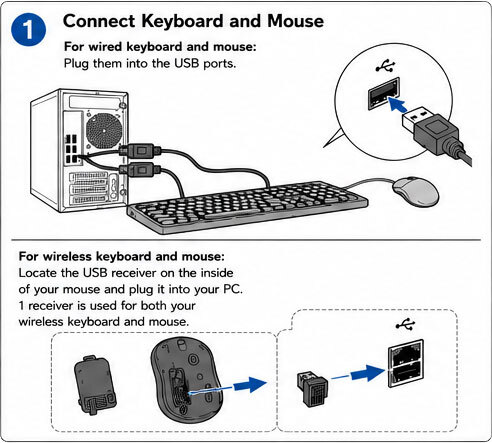
Dell Support HP Support Lenovo SupportHow to Set Up Your Wireless Keyboard & Mouse:
- Remove the USB Receiver
Open the battery cover on the bottom of the mouse. The USB wireless receiver is usually stored inside.
- Connect the USB Receiver
Insert the USB receiver into a front USB port on your desktop computer.
- Power On the Devices
Turn on both the keyboard and mouse. They should connect automatically within a few seconds.
If the Keyboard or Mouse Still Doesn’t Work
- Double-check that the batteries are installed correctly.
- Replace the batteries if necessary.
- Try plugging the USB receiver into a different USB port.
All of our machines are loaded with a default level of Windows updates. However, Windows will need to install any additional updates released afterwards. Never turn your machine off in the middle of installing updates! This will corrupt your Windows installation.
Using a Microsoft Account (Windows 10/11): click “I forgot my password” on the login screen and follow the verification steps via email or phone to reset your password.
Still Locked Out?
You may need to reinstall Windows, which will erase your files. Back up important data if possible or consult a technician before proceeding.
Yes! Every BlairTech PC includes:
- Windows Defender (Windows 10/11)
- Microsoft Security Essentials (for older versions)
If you install another antivirus, uninstall Windows Defender first to avoid conflicts.
We do not install Microsoft Office on our computers as it is a paid service through Microsoft (Office.com). However, we install a standard, open source Office Suite that is compatible with Microsoft Office files. You can open and edit all the standard files that you create in Office.
Background apps, startup programs, and installed software can affect speed. Running updates, removing unused apps, and scanning for malware usually helps. Contact us for support if needed.
BitLocker encrypts your drive for security.
Go to: https://aka.ms/recoverykey
Sign in with the Microsoft account linked to your PC to find your recovery key.
No key found? You will need to reinstall Windows, which erases encrypted data.
Please contact our Customer Service Department via email or telephone 1-855-252-4784, Monday-Friday 9AM-5PM Eastern Time to cancel your order.
We offer a 30-day return window for most products. Items must be returned in good condition with all original accessories. See our Return Policy page for details.
For information about warranties, please visit our Warranty page
We accept major credit cards (Discover, MasterCard, Visa and AMEX). You can also pay for your order with PayPal, Apple Pay or Google Pay!
Yes! We do offer promo codes on our site our through email, social media like Facebook and more! Be sure to follow us and subscribe to our newsletter to recieve all of our promotions as they launch! If you have a promo code, you can activate it in your cart or on the checkout page.
Standard shipments will be shipped through UPS, FedEx or USPS Ground transport. We usually ship within 3-5 days Business Days of payment received.
Standard shipments will be shipped through UPS, FedEx or USPS Ground transport. We usually ship within 3-5 days Business Days of payment received.
We appreciate your interest in our products, however, we do not ship internationally or to U.S. territories outside the 48 contiguous states in the USA.
At times, due to parts availability, we may upgrade your refurbished PC to a newer or more powerful model at no extra cost to you. This ensures you receive the best value and performance for your purchase, even when specific components are out of stock.
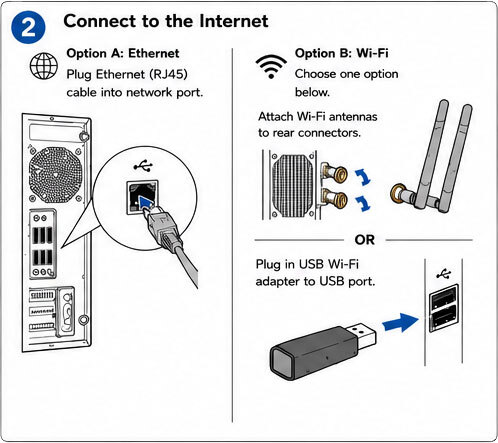
- Make sure the included USB Wi-Fi adapter is securely plugged in.
- Try unplugging and reconnecting the adapter.
- Restart your computer and check again.
Press Windows Key + I OR Click Start → Settings.
Step 2: Open Sound Settings- Select System
- Click Sound
- Under Output, choose your speakers or headphones from the dropdown menu.
- Click Test to confirm sound is working.
Tip: Ensure speakers or headphones are properly connected and powered on.
Step 4: Select Your Microphone- Under Input, select the correct microphone.
- Speak into the microphone and confirm the input level bar moves.
If the bar responds, your microphone is working properly.
Still Having Trouble? Run the Windows Sound Troubleshooter- In Sound Settings, click Troubleshoot under the affected device.
- Follow the on-screen instructions.
Windows will attempt to automatically detect and fix audio issues.
- Press Windows Key + X
- Select Device Manager
- Expand Audio Inputs and Outputs
- Select Uninstall Device
- Restart your computer
Windows will automatically reinstall the driver after rebooting.
It means you’ve been given a newer or higher-end PC model at no extra cost to you. This happens when the exact model you ordered sells out before your order is shipped.
No — all the key specifications (Processor, RAM, storage, graphics, etc.) remain exactly as you ordered. In rare cases, if specs did change, they will always be an upgrade, never a downgrade.
For example: If you ordered a PC with a 512GB SSD and we are out of stock, it may be upgraded to a 1TB SSD.
If you ordered a Dell OptiPlex 3060 and it is unavailable, you may be upgraded to a Dell OptiPlex 7060. The Dell OptiPlex 7060 is a higher-tier model than the 3060, offering faster performance, more upgrade options, and enhanced connectivity — so you’re getting more power and features at no extra cost.
Not at all. Your warranty and customer support coverage stay exactly the same.
The difference is in the model series or case, not the performance. In some cases, you might even receive newer internal components or a more recent model design.
We’d rather you get your PC on time or faster than wait for the specific model to come back in stock. This way, you get what you ordered, plus the added bonus of an upgrade!
Some HP computers may display the HP Sure Start Recovery message shown below during startup.
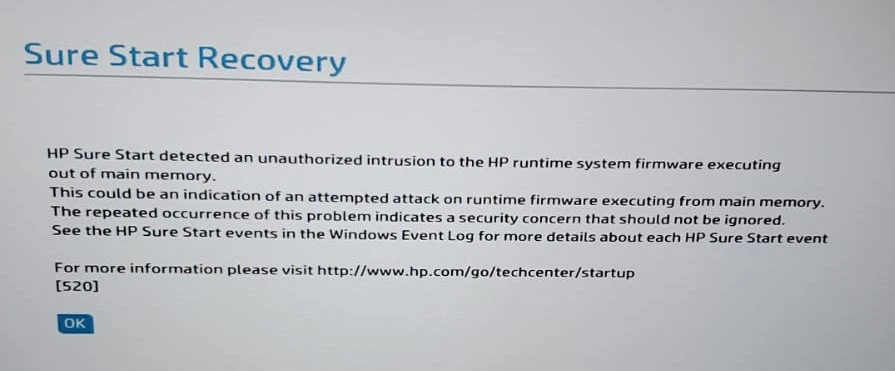
Microsoft is updating the security certificates used by Secure Boot, a Windows security feature that helps protect your computer during startup.
The original certificates were issued in 2011 and began reaching their expiration period in 2026. Microsoft is replacing them with updated certificates as part of an industry-wide security transition.
On some HP computers, this transition may cause an HP Sure Start notification to appear during startup.
For most customers, no immediate action is required. Select OK and allow your computer to continue starting normally.
We recommend keeping Windows Updates and HP updates current so your computer can receive the appropriate security updates as they become available.
Please do not change Secure Boot or BIOS settings unless specifically instructed.
Yes! Microsoft confirms that computers that have not yet received the updated Secure Boot certificates can continue to start and operate normally, and regular Windows Updates will continue to install.
If the message continues to appear or your computer does not start normally, contact BlairTech Customer Support and we can help. Click here to contact us.
Microsoft has published additional information about the 2026 Secure Boot certificate updates and how they are being delivered to Windows devices. Click here to read additional information.
Still Can't Find What You're Looking For?
We’re Here to Help, Every Step of the Way
If you're still having trouble or have a question, our customer service team is here to help. Whether it's setup, connections, or anything in between, we'll walk you through it. Reach out to us anytime -- we're happy to help you get up and running!